Web interface
View readings, find the sensor, set the access password
Every sensor has a small web page that it provides in your WiFi. There you see the current readings, a log for troubleshooting and the option to update the firmware. All you need is a web browser in the same WiFi as the sensor.
Find the sensor
Open the address in your browser
http://eco…-<ID>e.g. http://ecopvgx-431512. In some networks you have to append .local: http://ecopvgx-431512.local.
If neither works (some routers and home networks do not resolve device names), look in the device list of your WiFi router to see which IP address was assigned to the sensor, and then open http://<IP address>, e.g. http://192.168.1.95.
Tip: set up a fixed IP address in the router for the sensor (often called "static DHCP assignment"). Then you can always find it at the same address – especially handy if the sensor is in a hard-to-reach place.
Login
EcoMBR1: From the factory the web page needs no login; until you have set a password it shows a red warning banner at the top. Set your own access password right after setup. After that the browser asks for the login when you open the page:
User: admin
Password: your own access password
Other sensors (e.g. EcoPVGX, EcoSPM): On the web page you log in with:
User: admin
Password: 12345678
What you see there
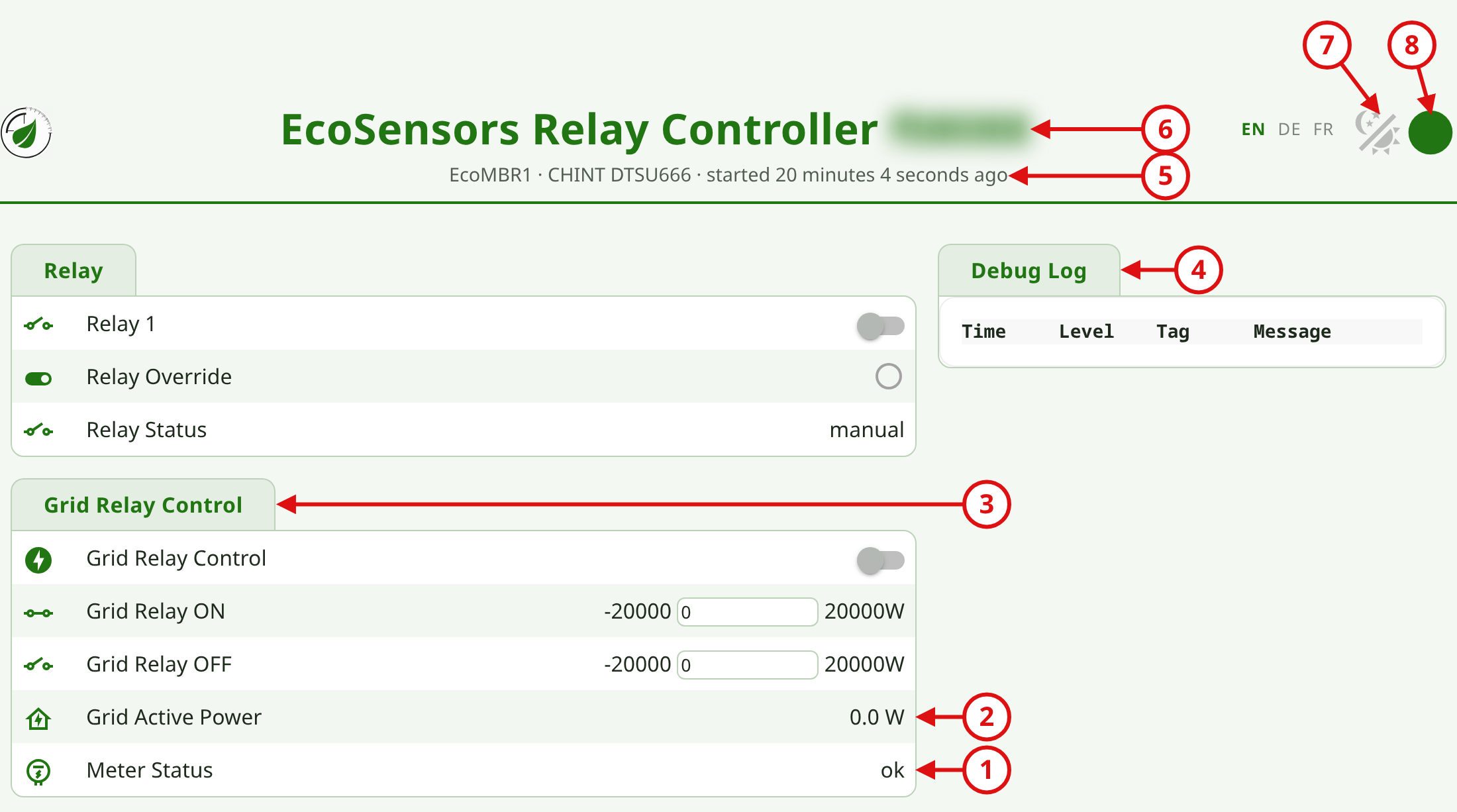
- Sensor data
- A "click" on a sensor value shows details (history)
- A "double click" on a heading enlarges the area
- Log output – in case of an error it says here what does not work
- Uptime since the last restart
- Name and type of the sensor
- Light/dark mode
- Heartbeat: green = active, grey = offline
Further down the page you find the details about the sensor itself:
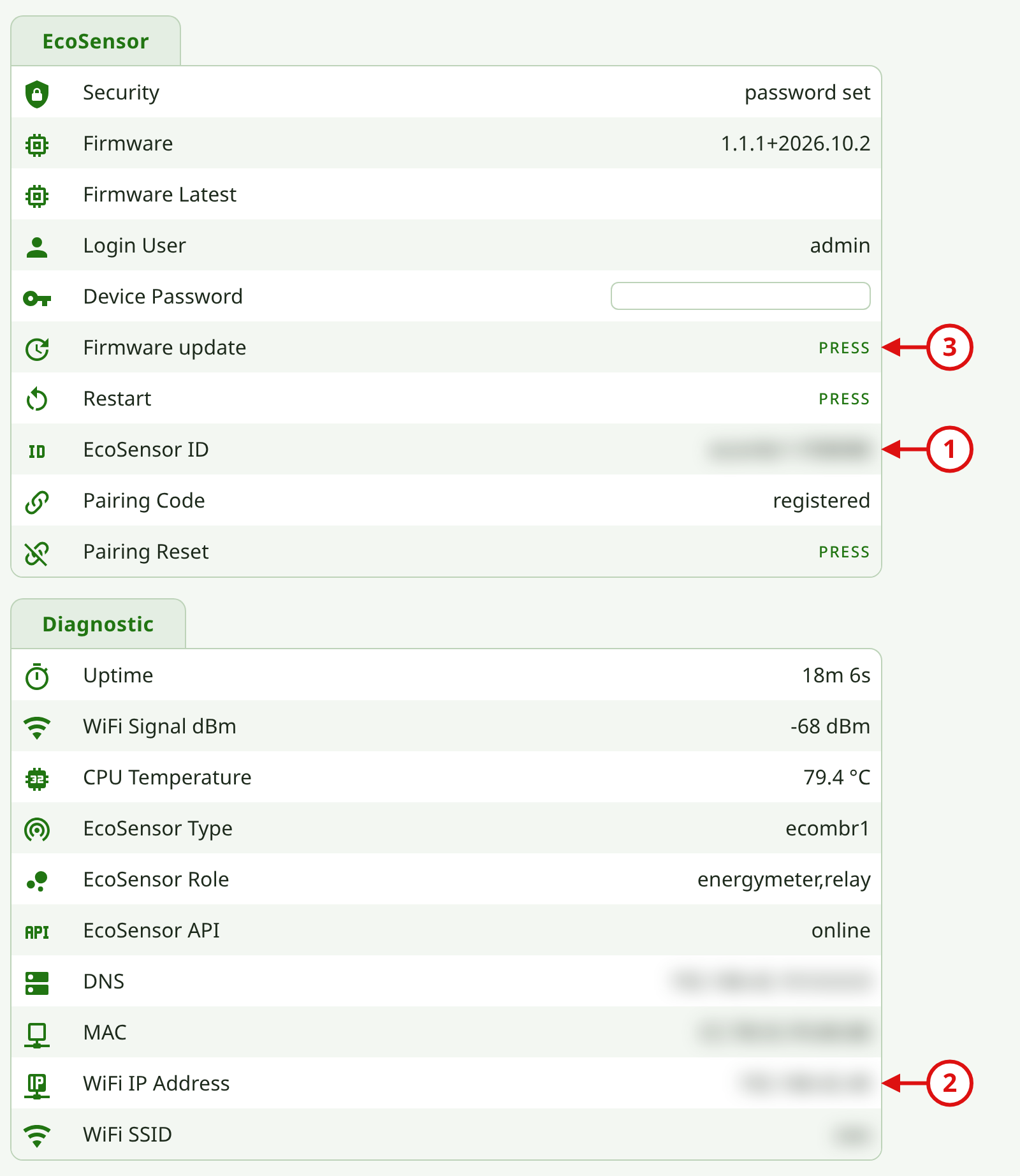
- EcoSensor ID – needed to register the sensor
- Network details and operating parameters, among others the IP address of the web interface and the installed firmware version
- Firmware update (depending on the sensor as a Firmware update button or as a OTA Update file selection, see Firmware update)
Set the access password
Applies to the EcoMBR1. From the factory no password is set: as long as that is so, anyone on your WiFi can operate the sensor (e.g. switch the relay or change the limits) and install a different firmware. So set your own password right after setup.
- Open the web interface and scroll to the EcoSensor group. As long as no password is set, Security shows the warning "not protected" (and there is a red banner at the top of the page).
- In the Device Password field enter a password of at least 8 characters and confirm with the Enter key (or leave the field). The field stays empty afterwards; the password is never displayed.
- Security briefly reports "password saved", then "password set", and the red banner disappears. If the password is too short it is not accepted, and Security says so.
- The browser now asks for the login: the user is always admin (it is also shown in the Login User row), the password is the one you just set.
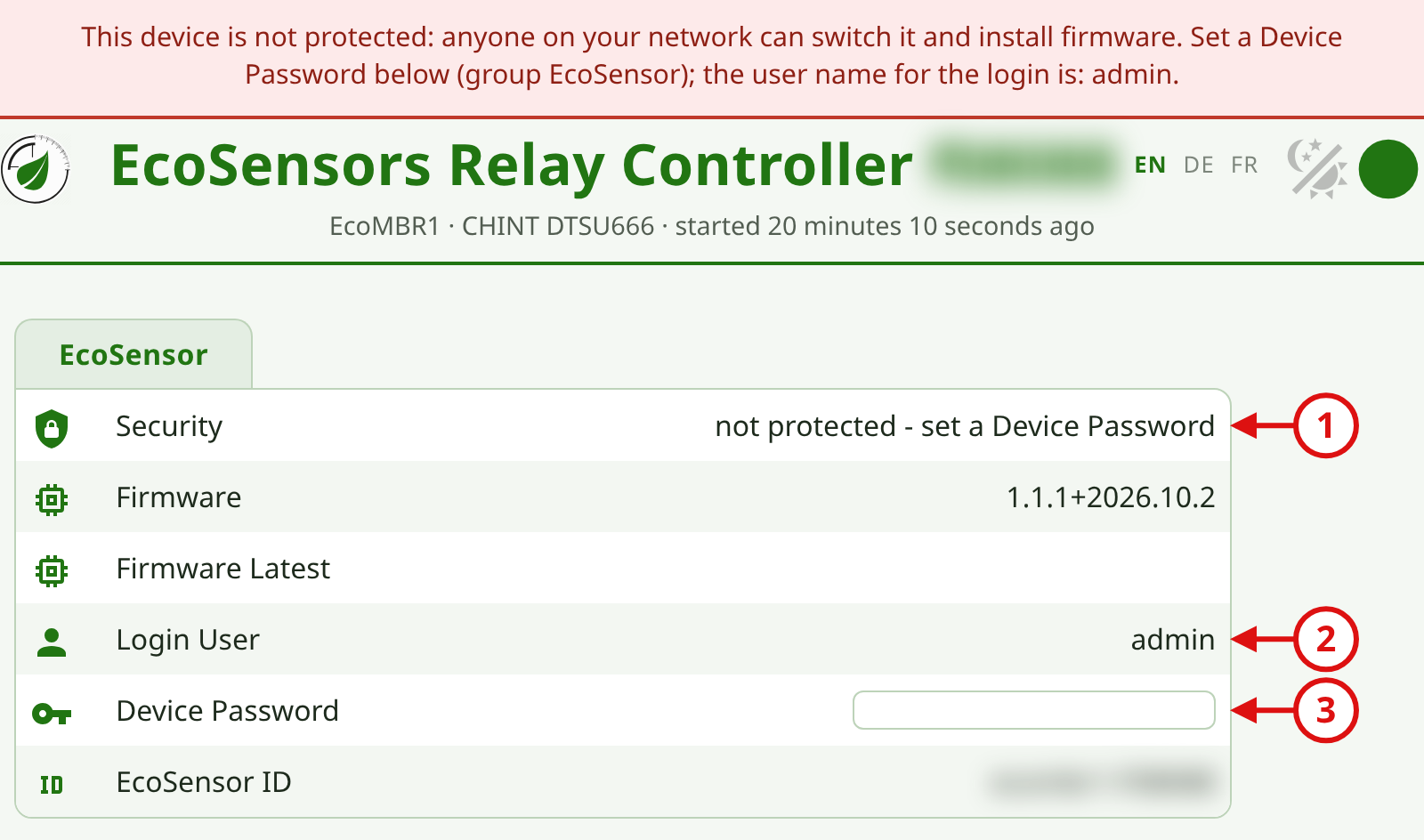
In the picture: 1 warning at Security (and the red banner at the top), 2 user name, 3 the Device Password field. The device identifier in the title is blurred.
To change it, enter a new password in the same field (you have to be logged in for this). The change applies immediately, the sensor does not restart. Keep the password in a safe place.
The password protects the web interface and the firmware update from a computer (ESPhome). The Firmware update button in the web interface (Way B) works as before. It is stored only in the sensor and is not sent to the cloud. Changes are noted in the sensor's log.
Not protected by the password are the hot spot (it only appears when the sensor finds no WiFi) and the Home Assistant interface (it has its own key). The web interface runs unencrypted (http): the password is not sent in clear text, but this does not stop a determined attacker in your network. The password protects against chance, guests and foreign devices on your WiFi.
Forgotten the password? It can be reset on the sensor itself, see Forgotten access password in the EcoMBR1 documentation. Afterwards the sensor is open again and you set a new one.