New device
How to add a new device to your dashboard
For a device to show up on your dashboard, you first need to register it — that is, claim it for yourself. You'll find the link for that in the sidebar under New device, right next to Dashboard.
This page is part of your dashboard, so it requires dashboard access — like the dashboard itself, you normally have this automatically once you're logged in.
Registering a device
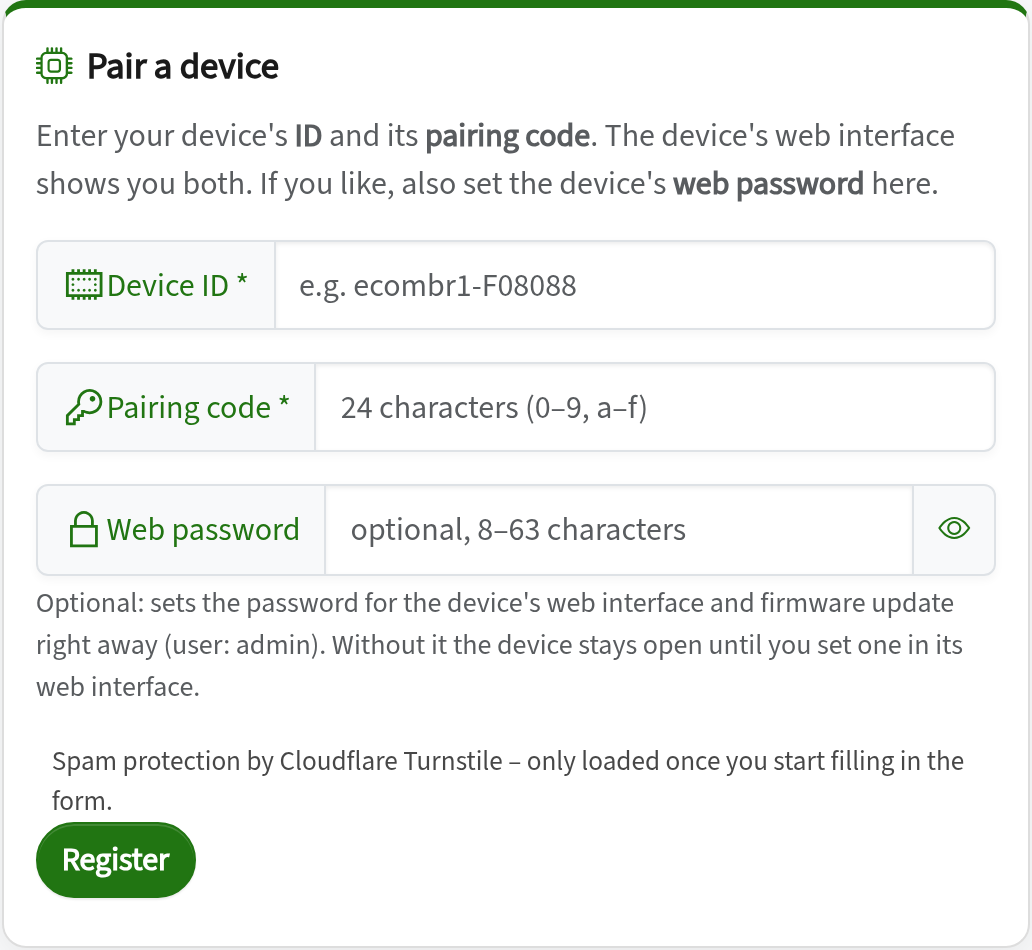
Enter the device ID (format <type>-<code>, e.g. ecombr1-f08088) and the pairing code in the form. The device's web interface shows both: the ID under EcoSensor ID, the code under Pairing Code, each in the EcoSensor group.
Only for devices with a display: scan the QR code on the device's info page and this form opens with the device ID already filled in – only the pairing code is still missing. Devices without a display don't offer this; there you enter ID and code by hand.
Web password (optional): In the Web password field you set the password for the device's web interface and firmware update right away (8 to 63 characters, the user is always admin). The cloud sends it to the device as soon as it has connected to the cloud after registration – the form waits up to half a minute for this and then reports the result. The password is neither stored nor logged, it lives only in the device. If you leave the field empty the device stays open until you set a password in its web interface (see your device's guide). If the device did not connect in time, set the password there by hand.
Before submitting, you'll need to pass a short security check (a small, automatic checkbox widget) — this keeps the form from being abused by automated bots.
Pairing code
A device carries no credentials for the cloud. On first start each device generates its own pairing code (24 characters) and shows it in its web interface. When you register, the cloud uses it to set up the device's own access, and the device then connects by itself. The device does not have to have reported before. For its first registration it has to be switched on and connected to the internet: the cloud waits up to half a minute for it to sign in with the code and otherwise saves nothing. If you build a device yourself and flash it with the public firmware, proceed the same way.
As soon as the device has connected successfully, the web interface shows just registered instead of the code. After registration the device shows up on your dashboard; it can only be registered to one account. If a device is yours but already registered to another account or already known to the cloud (e.g. with older firmware), contact support.
Lost the code or set the device up again? Press Pairing Reset in the device's web interface: the device generates a new code and restarts. Then register it again with the new code (with the same account).
Until it is registered the device works normally locally (web interface, Home Assistant) but sends no values to the cloud.